📚 Complete Tutorial: Configuring a Medical Chatbot with AI Engine

*This is the third part of the complete configuration guide. If you missed the first two parts, you can find them [here]** and [here]**.*

In the first two parts we covered:
✅ **Technical Foundation** – Token system, cost optimization, Dashboard modules
✅ **Chatbot Configuration** – AI Model, Embeddings, Thresholds, Knowledge Base
✅ **User Interface** – Appearance, Popup, UI Builder, Advanced
✅ **Advanced Integrations** – Cross-Site, Shortcodes, Actions

## 📊 NOW WE WILL ACTIVATE THE COMPLETE CONTROL PANEL:

In this part, we will explore both monitoring and the initial global settings:

🔹 **Discussions** – Analyzing user conversations
🔹 **Insights** – Monitoring costs and performance metrics
🔹 **Settings – AI** – Configuring environments and AI providers


📊MONITORING AND ANALYSIS – “Discussions”

📍 AI Engine → Discussions


🔹 MAIN FUNCTIONALITY

Function: Viewing all conversations
Utility: Monitoring chatbot performance
Access: Complete interaction history

📈 MONITORING CONVERSATIONS

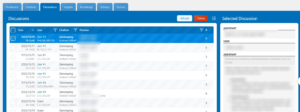
🔍 WHAT WE SEE IN THE PANEL:

- All user discussions
- Date and time of each conversation
- Involved users
- Topics discussed

💬 PRACTICAL EXAMPLE FROM THE SYSTEM

📋 EXISTING CONVERSATIONS:

User #3: "bladder infection"
User #3: "urinary tract infection"

🔧 HOW TO USE DISCUSSIONS FOR OPTIMIZATION

✅ PERFORMANCE CHECK

Verification Protocol:
  1. Confirm that responses comply with settings
  2. Verify response consistency
  3. Monitor interaction quality

🚨 PROBLEM IDENTIFICATION

What to look for in conversations:
  - Responses non-compliant with settings
  - Errors in conversations
  - Technical issues

📋 BENEFITS FOR ADMINISTRATION

⚡ CONVERSATION MANAGEMENT

✅ Complete visibility into usage
✅ Rapid problem detection
✅ Continuous service improvement

🔧 MAINTENANCE AND SUPPORT

✅ Tracking user issues
✅ Efficient technical support
✅ Optimization of user experience


🎯 CONFIGURING LIMITS -“INSIGHTS”

📍 AI Engine → Insights


🔹 SETTING FINANCIAL LIMITS

🔧 CONFIGURING LIMITS FOR USERS:

1. Check "Enable Limits"
2. Under "Users", set:
   - Credits: 10 (maximum amount per user)
   Type: Dollars (or Questions/Tokens)
3. Under "Guests", set a lower limit (e.g.: 5$)
4. Under "System", set the global limit (e.g.: 100$)

💡 SIGNIFICANCE OF EACH OPTION:

Dollars: Limits by amount spent ($)
Questions: Limits by number of questions
Tokens: Limits by number of tokens

👥 DIFFERENTIATING LIMITS BY USER TYPE

🎯 RECOMMENDED CONFIGURATION STRATEGY:

REGISTERED USERS (USERS):

Credits: 10$ (more for loyal users)
Reason: They may have complex needs and long consultations

VISITORS (GUESTS):

Credits: 2-3$ (conservative limit)
Reason: Prevents abuse from anonymous users

SYSTEM (SYSTEM):

Credits: 100$ (global safety limit)
Reason: Blocks the entire system upon exceeding

⚠️ MONITORING AND ADJUSTING LIMITS

📊 INTERPRETING USAGE DATA:

If users quickly reach the limit:
- Increase the limit from 10$ to 15$
- Or change from $ to Questions

If no one reaches the limit:
- Decrease the limit for savings
- Or keep it for user convenience

🔄 TIMES FOR ADJUSTMENT:

After 1 week: Observe real patterns
After 1 month: Adjust based on complete data
Upon usage increase: Review limits

🛡️ SYSTEM PROTECTION THROUGH LIMITS

🚨 CONFIGURING SAFETY MEASURES:

Timeframe: "Month" (resets monthly)
Absolute: "Yes" (stops at the limit, doesn't just warn)

🎯 CONFIGURATION RESULT:

- Each user receives 10$ monthly
- Upon exceeding, they can no longer use the chatbot
- At the beginning of the month, the counter resets

✅ TESTING AND VERIFYING LIMITS

🧪 TESTING PROCESS:

1. Set a small test limit (1$)
2. Use the chatbot until the limit is exceeded
3. Verify that the system blocks correctly
4. Adjust to the final value

This configuration offers complete control over costs and prevents budget overruns.


⚙️ “SETTINGS” – GLOBAL CONFIGURATIONS

1. “AI” TAB – CONFIGURING AI PROVIDERS

📍 AI Engine → Settings → “AI” Tab


🔹 “ENVIRONMENTS FOR AI” SECTION – CONFIGURING CONNECTIONS

🌐 MAIN CONFIGURATION PANEL:

Purpose: Configuring connections with AI providers
Status: List of configured environments + action buttons

🔧 INTERFACE ELEMENTS:

📋 ENVIRONMENTS LIST:
OpenAI: ✅ Configuration button (main provider)
OpenRouter: ✅ Configuration button (cost-efficient alternative)
➕ Button for adding custom providers

🏗️ CONFIGURATION ARCHITECTURE:

Each environment represents:
- A connection to an AI provider
- An authenticated API key
- A set of specific capabilities
- A unique Environment ID

⚙️ CONFIGURING THE OPENAI ENVIRONMENT:

📝 COMPLETION FORM:

Name: "OpenAI" - environment identifier
Type: "OpenAI" - selected from the dropdown list
API Key: [API key] - field for authentication
Organization ID: optional - for business accounts

🎪 LIST OF AVAILABLE TYPES:

Dropdown Type includes:
├─ OpenAI (GPT-4, GPT-3.5 Turbo)
├─ Anthropic (Claude models)
├─ Azure (OpenAI on Azure)
├─ Google (Gemini, PaLM)
├─ OpenRouter (multi-provider aggregator)
├─ Replicate (open-source models)
├─ Perplexity (search + AI)
└─ Mistral (European models)

🔑 API KEY MANAGEMENT:

Source: platform.openai.com/api-keys
Security: 
  - Key is masked in the interface
  - Encrypted storage in the database
  - Automatic validation upon saving

🆔 ENVIRONMENT ID GENERATION:

Environment ID: "2vxxmijh" - automatically generated
Function: Unique identifier for the environment
Usage: References in chatbots and settings

🛡️ SECURITY AND VALIDATION MECHANISMS:

✅ CONNECTION TEST:

"Quick Test" Button: 
  - Checks API connectivity
  - Validates the API key
  - Confirms permissions
  - Returns connection status

🚨 DATA PROTECTION:

API Keys: 
  - Not displayed in frontend
  - Transmitted securely to backend
  - Stored encrypted in database
  - Accessible only for legitimate processing

🎯 MEDICAL CONFIGURATION STRATEGY:

💊 SELECTING PROVIDER:

OpenAI GPT-4 Turbo:
  - Superior medical accuracy
  - Complies with strict prompts
  - Optimized cost for volume
  - Compatibility with embeddings

🔗 COMPLETE SYSTEM INTEGRATION:

OpenAI Environment → Medical Chatbot → Knowledge Base
         ↓                   ↓                 ↓
API Connection        Uses environment    Database
Key Validation        GPT-4 Turbo Model    Ada-002 Embeddings

🔹 “DEFAULT ENVIRONMENTS FOR AI” SECTION – SPECIALIZED CONFIGURATION

🌐 SPECIALIZED ENVIRONMENTS PANEL:

Purpose: Configuring specialized environments for specific tasks
Structure: 7 tabs for different types of AI processing

🔧 AVAILABLE TABS:

🎯 DEFAULT – GENERAL PROCESSING:

Environment: OpenAI
Model: GPT-4 Turbo (✅ Selected)
Purpose: General conversational interactions
Usage: Chatbots, content generation

⚡ FAST – QUICK RESPONSES:

Environment: OpenAI
Model: GPT-4o Mini (✅ Selected)
Purpose: Fast tasks, optimizing search queries
Features: Increased speed, reduced cost

👁️ VISION – IMAGE PROCESSING:

Environment: OpenAI
Model: GPT-4o Mini (✅ Selected)
Purpose: Image analysis and understanding (image-to-text)
Capabilities: Text recognition, descriptions, content analysis

🎨 IMAGES – IMAGE GENERATION:

Environment: OpenAI
Model: DALL-E 3 (HD) (✅ Selected)
Purpose: Generating images from text descriptions
Quality: HD - high definition
Alternatives: DALL-E 3, DALL-E 2

🔍 EMBEDDINGS – TEXT VECTORIZATION:

Environment: OpenAI
Model: Embedding Ada-002 (✅ Selected)
Dimensions: 1536 (Native)
Purpose: Creating embeddings for semantic search
Usage: Knowledge bases, text similarity

🎵 AUDIO – AUDIO PROCESSING:

Environment: OpenAI
Model: Whisper (✅ Selected)
Purpose: Audio transcription (audio-to-text)
Alternatives: GPT-4o Transcribe, GPT-4o Mini Transcribe

📊 JSON – STRUCTURED DATA:

Environment: OpenAI
Model: GPT-4o Mini (✅ Selected)
Purpose: Generating structured data, JSON formatting
Usage: API responses, data processing

🏗️ MEDICAL CONFIGURATION STRATEGY:

💊 SELECTING OPTIMAL MODELS:

Default: GPT-4 Turbo → Maximum medical accuracy
Embeddings: Ada-002 → Compatible with the medical knowledge base
Fast: GPT-4o Mini → Quick responses for symptoms

🔗 INTEGRATION ARCHITECTURE:

Medical Chatbot → Default Environment (GPT-4 Turbo)
Knowledge Base → Embeddings Environment (Ada-002)
Search Queries → Fast Environment (GPT-4o Mini)

🔍“EMBEDDINGS ADA-002” – THE VECTORIZATION SYSTEM

🎯 WHAT IS EMBEDDING ADA-002:

🤖 TECHNICAL DEFINITION:

Embedding Ada-002: OpenAI model for transforming text into vectors
Function: Converts words and phrases into numerical representations
Analogous: "Translator" from human language to mathematical language

🏗️ HOW IT WORKS:

Text: "paracetamol for fever"
         ↓
Embedding Ada-002
         ↓
Vector: [0.123, -0.456, 0.789, ..., 0.234] (1536 numbers)

📐 DIMENSION 1536 – SIGNIFICANCE:

🔢 WHAT 1536 REPRESENTS:

Dimension: 1536 numbers in each vector
Significance: 1536 characteristics of the text
Each number: Represents a semantic feature

🎯 WHY 1536 IS IMPORTANT:

Precision: The more dimensions, the more precise
Complexity: Captures fine nuances of meaning
Optimized: Perfect balance between performance and cost

💊 APPLICATION IN THE MEDICAL SYSTEM:

🔍 PRACTICAL MEDICAL EXAMPLE:

Question: "what medicines for acute cough?"
         ↓
Embedding Ada-002
         ↓
Vector: [cough characteristics, acute, respiratory symptoms...]
         ↓
Search for similarity in the database
         ↓
Results: Cough medicines (if available)

🏥 BENEFITS FOR MEDICINE:

✅ Understands medical synonyms: "fever" = "temperature" = "pyrexia"
✅ Detects similar contexts: "acute cough" ≈ "persistent cough"
✅ Finds correlations: "joint pain" → anti-inflammatories
✅ Eliminates reliance on exact keywords

🔧 INTEGRATION INTO SYSTEM ARCHITECTURE:

🗂️ COMPLETE FLOW:

Medicine PDF → Text extraction → Embedding Ada-002
         ↓
1536D Vectors → Storage in Qdrant Cloud
         ↓
User question → Embedding Ada-002 → Search Vector
         ↓
Vector comparison → Similar medicines → Response

⚡ SYSTEM EFFICIENCY:

Speed: Ultra-fast vector search
Accuracy: Finds connections that keyword matching misses
Scalability: Works with thousands of medicines

Embedding Ada-002 is the intelligence engine that understands the meaning behind medical words! 🧠
🔹 “GENERAL” SECTION – ADVANCED SYSTEM SETTINGS

🔄 STREAMING – REAL-TIME RESPONSES:

Status: ✅ Enable (activated)
Function: Progressive display of AI responses
Benefits:
  - Enhanced user experience
  - Immediate visual feedback
  - Sense of natural conversation

⚠️ BETA LIMITATIONS WARNING:

Warning: The ability to manage statistics, limits, and filters
is still in beta phase
Recommendation: Close monitoring of performance

🐛 EVENT LOGS – ADVANCED DEBUGGING:

Status: ❌ Enable (disabled)
Function: Display streaming events and function calls
Conditions:
  - Requires Streaming to be activated
  - Visible only in the chatbot interface
Usage: Technical debugging for developers

🚀 RESPONSES API – IMPROVED PERFORMANCE:

Status: ✅ Enable (activated - recommended)
Function: Use the new OpenAI Responses API
Benefits:
  - Superior performance
  - Enhanced functionalities
  - Optimized experience

🔧 FALLBACK MANAGEMENT:

Recommendation: Activation for maximum benefits
Fallback: Can be disabled if issues arise
Compatibility: Works with all OpenAI environments

🏗️ GENERAL SETTINGS ARCHITECTURE:

⚡ IMPACT ON THE SYSTEM:

Active Streaming:
  - Responses displayed character by character
  - Reduced latency for the first token
  - More natural interaction

Active Responses API:
  - Modern communication structure
  - Improved error handling
  - Compatibility with future features

💊 OPTIMIZATION FOR MEDICAL SYSTEM:

Streaming: Beneficial for long medical consultations
Event Logs: Disabled - not needed in production
Responses API: Enabled - stability for patients

✅ RECOMMENDED CONFIGURATION:

✅ Streaming: Enable (premium user experience)
❌ Event Logs: Disable (security and performance)
✅ Responses API: Enable (stability and features)

**📚 CONTINUING IN PART 4**

We have finalized the monitoring system and the initial global AI settings.
In the next article, we will complete the configuration of all global settings:

🔹 **Settings – Chatbot** – Global settings for all chatbots
🔹 **Settings – Knowledge** – Central knowledge base configurations
🔹 **Settings – Orchestration** – Integrations and automations
🔹 **Settings – Files & Media** – File management
🔹 **Settings – Remote Access** – API and external connections
🔹 **Settings – Others** – Security and maintenance

**[👉 Read Part 4: Complete Global Configurations here]**